 Sceneleaf
 practical guide
Set your own video as a Chrome new-tab background
Bring a video from your device into a new tab, choose when wallpapers change, and keep the clock clear of the subject.
This walkthrough follows Sceneleaf’s current interface. Its controls are in Traditional Chinese; English translations below are reference labels.
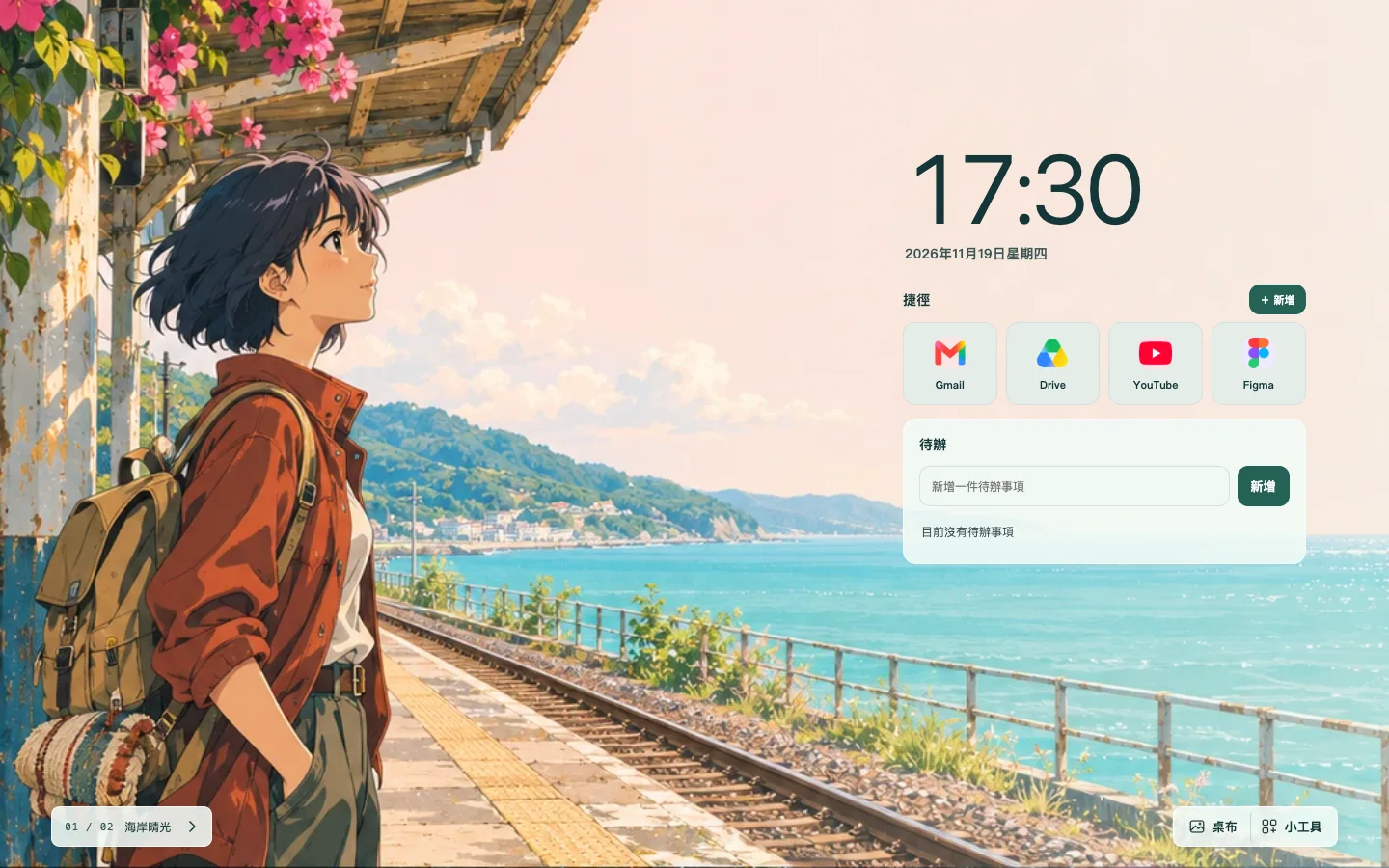
Add your own video
- Open a Chrome new tab where Sceneleaf is running, then select 桌布 (Wallpaper) in the bottom toolbar.
- Select 加入圖片或影片 (Add image or video) and choose a file, or drag the file onto the new-tab workspace. After import, the video appears in the wallpaper library and is selected.
The current importer accepts video files ending in M4V, MOV, MP4, OGV or WebM. Chrome must also be able to decode the video’s codec, so an accepted filename does not guarantee playback. If the new tab reports that the wallpaper cannot play, choose a browser-decodable video.
Imported videos stay in your Chrome profile and are handled on your device. Read the privacy policy for the site’s data details.
Set up automatic wallpaper rotation
- In 桌布 (Wallpaper), open 桌布切換 (Wallpaper rotation) and choose 定時輪播 (Timed rotation).
- Choose a 停留時間 (Display time): 10 seconds, 30 seconds, 1 minute or 5 minutes.
- Under 輪播清單 (Rotation list), leave checked the photos and videos you want in the sequence. At least one wallpaper must stay checked.
每次開新分頁 (Change on each new tab) advances when you open another tab; refreshing the current tab keeps its wallpaper. 固定目前桌布 (Keep current wallpaper) stops rotation. Timed rotation pauses while the settings panel is open or a form control is active, then resumes after the panel closes.
Videos play muted and loop. The play/pause control sits beside the wallpaper name in the bottom toolbar. When your system’s Reduce Motion preference is on, a video starts paused and can be played from that control.
Move or hide the clock so it does not cover the subject
To remove the clock, select 編輯桌面 (Edit workspace), open 小工具 (Widgets), then turn off 時鐘與日期 (Clock and date). This removes both the time and date.
To keep the clock but move the widget group, open 外觀 (Appearance) and set 小工具位置 (Widget position) to 依桌布自動排列 (Auto by wallpaper), 固定左側 (Keep left) or 固定右側 (Keep right). Use a fixed side when you already know where your video’s important subject appears.